Showing posts with label windows vista. Show all posts

Sunday, January 18, 2009

How To Have An 18 Movie Marathon In 2 Hours

Today my 3.5 year old was restless and scratchy so I started playing Shrek on my PC for him while I was updating Mood Stones. I saw the other 2 Shrek movies sitting there on my media hard drive and thought I'd try a little experiment.

What you see here is a screenshot of 18 movies playing at the same time on my dual monitor setup (2 x 4:3 CRTs). The system tray shows I had 21 windows open but the other three were hidden underneath somewhere and I couldn't get to their play buttons. My PC had no problems playing all 18 movies and even mixed the various audio streams out through to my 5.1 speakers with the AC3 (Dolby Digital) outputs even mixing correctly. I was a little surprised with that one. This would sure be an easy way to have an 18 film marathon... you'd be done in a few hours.

My next test was to see how my PC would handle multiple HD videos. I kicked in all 6 Star Wars movies which I just happen to have in 720p and they played with no troubles at all, again with the 6 distinct audio streams being mixed nicely.


(click for full size images, excuse the JPEG compression)


Just a few years ago you'd have struggled to play one high definition video now you can play six HD or 18 SD videos ACROSS THE NETWORK all at once and still have spare CPU for solitaire in another window.

I was running low on free RAM with the 18 videos playing (plus 3 more loaded ready to play) but the 6 HD videos didn't seem to worry Vista much. When I install Windows 7 on my PC I'll have to retry my experiment, especially seeing as MPEG4 decoding is now part of the OS.

FYI, my hardware specs:

CPU: Intel Core 2 Quad Q6600 (not overclocked)
RAM: 4GB
LAN: 1,000Mb/1Gb Ethernet
OS: Windows Vista 64
Video: ATI Radeon HD 4850 512MB
Audio: Onboard Realtek HD Audio
Codec: K-Lite Standard pack using WMP Classic.


Tuesday, January 13, 2009

Editing ID3 Tags With Vista

I'm not sure how widely documented this feature of Windows Vista is but I use it frequently and thought I'd pass on the info.

I sometimes acquire MP3s in various formats and more often than not the ID3 tags are either incomplete, incorrect or just not there. ID3 tags are metadata stored with the audio data as part of the MP3 file and include information such as the track name, the artist name(s), the cover art and plenty of other things.

Well, before Vista you had to edit the tags with third party software, through Winamp or Windows Media Player (WMP) or whatever media player you use which wasn't too bad, so long as the software updated the files then and there. Winamp does this but you can only edit one file at a time while WMP lets you edit multiple files at once (e.g. album title) but it delays updating the physical files until later which is a pain if you want to transfer them to an external device for example.

So here are my simple steps on cleaning up ID3 tags using Windows Explorer in Vista and finally adding album art of a decent size using Windows Media Player.

Step 1

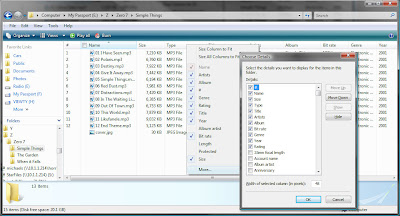
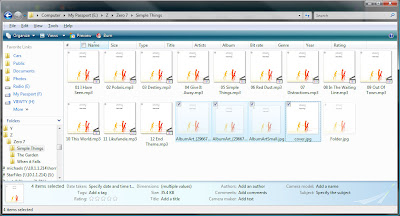
Firstly, make sure you can see the ID3 tag information in Explorer. Go to the folder with your MP3 files, select "Detail View" then right-click the titles of the columns. You can click on the "More..." option to get the complete list as shown in this screenshot. I like to select "#" (the track number), "Name" (the file name), "Size" (file size), "Type" (what type of file it is), "Title" (the song title), "Artists" (the album artist), "Album" (the album title), "Bit rate" (the bitrate of the MP3 file), "Genre" (the genre of the music) and "Year" (the year released).


Step 2

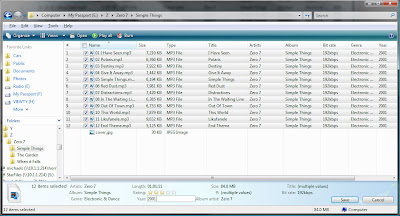
Now you can select the files in the list and edit the general information such as the Album Title, Album Artist, Genre and Year. To do this, just select the files and you'll see the aggregated details in the information bar at the bottom of the window. Clicking in any of these fields allows you to edit then save the details. Be careful you don't overwrite the track number, track title etc. as it will update all the files at once. If you want to edit a single file, just select the one you want and follow the same steps.


Step 3

Before adding album art, just check to see if the files already have them. In Windows Explorer set your view to Large Icons. If the files just have the default blue musical note icon instead of album art follow these steps to add it in. This will embed the image into the MP3 so when you transfer it around to various places you'll get the cover art. I usually get a 500x500 pixel image from Google Images, just search by artist name and album title, to serve as the cover art as WMP's 200x200 images are too small and badly compressed for my liking.

This is where we head over to Windows Media Player. Right click your folder and select "Add to Windows Media Player list" or "Play with Windows Media Player". Once you have WMP open go to the Library tab then select Now Playing in the left tree view. If the files haven't been added to your music library yet you'll see the Rating stars are grey, wait until they're all solid before continuing or you could get yourself into trouble (I've had WMP crash if it's trying to add cover art while adding tracks to the library).
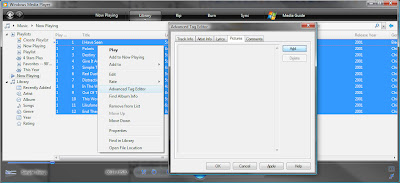


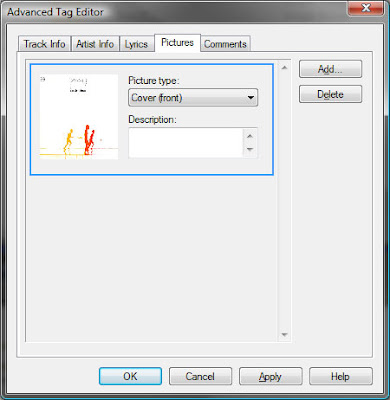
Now select all the files, right click any one of them and select "Advanced Tag Editor". Once that's open go to the Pictures tab and press "Add...". Select the JPEG you'd like to use as cover art making sure you set it as "Cover (front)" then hit OK. It may take a few seconds to update all the files and if one of them is playing (or was the previous track played) WMP will do it's whacky postponed update.


Head back over to Windows Explorer and hit refresh, you should now see each file has the cover art as its icon. If you want you can delete the system files that were generated (selected in the screenshot below). I like to keep folder.jpg so when I view the folder in icon view I get a nice image instead of a pile of images.


Done!

I know this isn't the only way to do it but it's the way I do it... hopefully it doesn't change too drastically in Windows 7.

Sony To Post First Loss In 14 Years

According to news.com.au's sources in Japan Sony, the electronics giant, will be posting its first loss in 14 years. Sony is expected to "post an operating loss of ¥100 billion" ($1.6 billion AUD) due to falling demand and a stronger yen the Nikkei business daily reported.

Personally I'm only surprised it hasn't happened sooner. Sony have a tendency to come out with wonderful new gadgets that cost an arm and a leg then not bother advertising them or they sabotage themselves in other ways.

Back in the day I bought (for a ridiculous amount of hard earned cash) the first "portable" MiniDisc recorder, the MZ1. It was huge but dear to my heart but not once did I see a Sony advertisement for MiniDisc other than on English soccer jerseys. By the time other people knew about MiniDiscs the MP3 revolution had arrived burying what could have been a large money spinner and really a handy product.

Now we have the PS3 which is leaning heavily on its Bluray capabilities to convince people that it's worth twice as much as an Xbox 360 which does essentially the same thing. Obviously not everyone is convinced.

It's about time Sony had a big rethink. Maybe they should use Microsoft as an example after all the positive hype around Windows 7 compared to the negative hype surrounding Vista prior to release.

Thursday, October 30, 2008

Windows 7 Will Do Stuff

Sorry for the day-late post but here's where you can get all you need to know about the new version of Windows, Windows 7. To me it looks like a point release for Vista but then again, it's not out for another year so who knows what'll happen between now and then.

Some highlights:

The icon-only items in the taskbar, which is now very square looking, are highlighted with a dynamic colour based on the main colour in the icon.

The Sidebar is gone and gadgets are now dumped on the desktop.

Hovering over an item in the taskbar brings that application into focus by making the other windows transparent (kind of like switching to it without switching to it). You can also do this with the Desktop so you can see your gadgets without having to minimize everything.

Supports up to 256 CPUs but can run on a pissy little eePC's CPU plus new DirectX enhancements means 50% less memory usage for the UX.

Lots more Windows 7 info can be found over on Long Zheng's blog.

Tuesday, October 21, 2008

I Just Need A Litte Space

Once again, Scott Hanselman delivers the goods, this time in the form of an easy to read guide on how to free up potentially heaps of hard drive space under Windows Vista.

Some of the tips are obvious, like running Disk Cleanup regularly, but tips on clearing away Vista Service Pack 1 setup files and good ol' NTFS Compression are something that most people might not think of (or even know about).

I did a few of these things last night and recovered around 4GB of space on my Vista 64 machine at home (now with an all new R4850 video card!).

Check out the guide with handy images over at Scott's blog... be warned though, his final tip has the "Works on my machine" certification which means it might not on yours.